Connecting to a ServiceNow Instance
Note: If you are experiencing issues with running jobs or events, we recommend disabling and re-enabling the connection to ensure everything works properly.
To interconnect Tidal Automation and ServiceNow instances, provide URL and user information associated the ServiceNow instance as described in the instructions below.
Note: ServiceNow connections must be active and available in ServiceNow to complete these steps without error.
To connect to a ServiceNow instance:
-
Navigate to the Administration menu in the Navigation pane.
-
click Connections.
Note: Green and red indicators show whether a connection is enabled (green) or disabled (red).
-
Click and choose ServiceNow Adapter from the dropdown list to open a Connection Definition dialog.
-
Enter the connection name in the Name field.
Note: Each connection name is unique and have a maximum of 30 characters (letter and numbers).
-
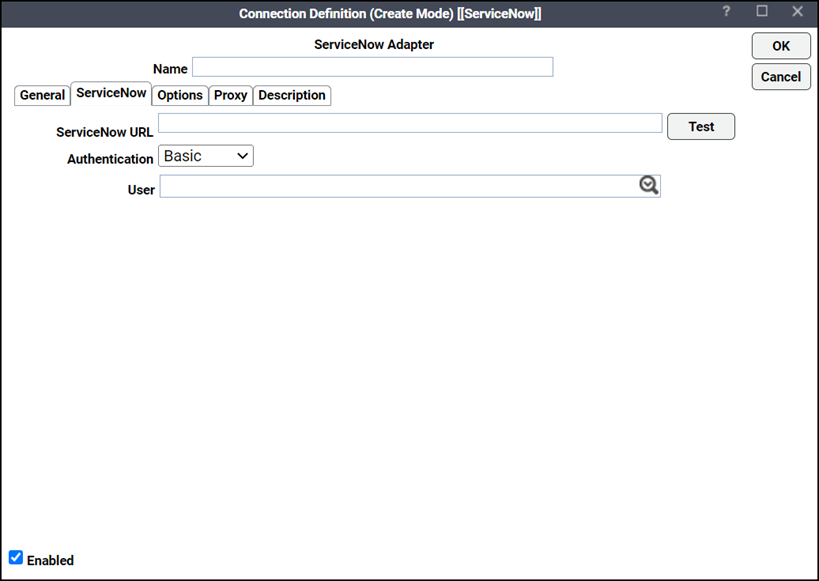
Open the ServiceNow tab.
-
Enter the URL of the ServiceNow instance for the connection in the ServiceNow URL field.
-
Click the authentication type: Basic or OAuth 2.0 on the Authentication dropdown list. If you click OAuth 2.0, provide the Client ID and Client Secret. For more information about setting up OAuth 2.0, follow the steps for setting up OAuth 2.0.
To set up OAuth 2.0, follow these steps:
-
Click a user from the User dropdown list.
-
Click Test to verify that the URL successfully connects to the ServiceNow instance.
-
Click OK.
-
The ServiceNow connection is added to the list.
The Enabled checkbox indicates whether the connection is currently active.
-
-
Click OK to display the configured connection. Note that the connection’s green indicator signals the availability of the server.