Defining a Job
Defining OVMS jobs in Enterprise Scheduler is very similar to creating other jobs in Enterprise Scheduler. There is a specific menu option in the Job pane context menu that pertains to OVMS. In the context menu, click Add Job > OVMS Job.
There are three types of OVMS executables that can run as Enterprise Scheduler jobs:
-
Command files (xxx.com) – similar to shell scripts in UNIX or .bat files in Windows
-
Compiled files (xxx.exe) – binary executable files that have been compiled/ assembled
-
Commands – system type of commands like "show time" or "show system"
The three types of Enterprise Scheduler OVMS jobs – Batch(JobQ), Command and Job – relate to these executable types and how they are presented to OVMS to run:
-
.com files and .exe fils can run as ‘Batch(JobQ)’ jobs
-
.com files and .exe files can run as ‘job’ jobs
-
system commands and .com files can run as ‘command’ jobs
The job definition dialogs for these three types of OVMS jobs may share some of the same or similar text fields but each type has its own definition to define the unique characteristics of each type and control how it is presented to OVMS for execution.
Defining an OVMS Batch Job
To run a batch job, choose Add Job > OVMS Job > Batch(JobQ) from the context menu of the Jobs pane to display an OVMS Job Definition dialog with a Batch(JobQ) tab. Batch jobs in OVMS require parameters that are not used by other types of OVMS jobs. The options on the Batch(JobQ) tab used to define a batch job are very different from the other two types.
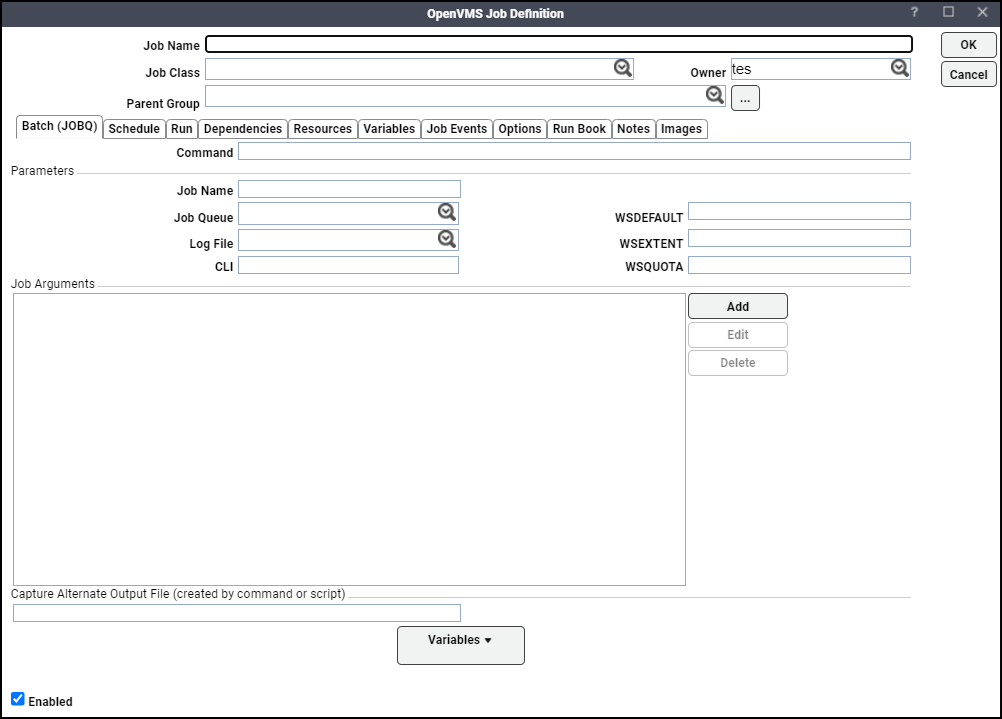
The Batch(JobQ) tab contains these elements for defining a batch job in OVMS:
-
Job Name – The name of the job (and possibly its log file). The job name can contain up to 39 alphanumeric characters. By default, the job name will be the name of the first file in the job. Ensure that the job name is a valid file name as it may be used as the log file name if nothing is specified in Log File field.
-
Job Queue – The batch queue to which the job will be submitted. The default queue is SYS$BATCH.
-
Log File – The name of the log file. The output of the batch job is written to this file. If not specified, the log file is automatically created in the SYS$LOGIN directory and given the same name as the batch job. A log file has a .log file extension added to the file name. To prevent any log file from being created, choose the No Log File option from the list.
-
CLI – The command language interpreter to use when processing the job.
-
WSDEFAULT (Working Set Size Default) – The number of physical pages that the job can use.
-
WSEXTENT (Working Set Extent) – The maximum physical memory that the job can use.
-
WSQUOTA (Working Set Quota) – The amount of physical memory that the job is guaranteed.
-
Job Arguments – In this field, up to eight optional parameters can be entered to be used by the batch job.
-
Capture Alternate Output File – If a file is specified in this field, the agent looks for the output file in the location specified and reads it as text, returning that text as the output of the job instead of gathering the job process’s standard output. A job process’s “standard output” is the text that would be returned to the screen if you were to run the process manually via a command line interface. However, some applications do not return any “standard output,” resulting in a blank Output tab in the Job Detail dialog if run by Enterprise Scheduler.
Example: If your job produces a small report in plain text format, you can specify that file’s pathname here. (Refer to the Load URL feature on the Runbook or Notes tab for details on presenting a non‐text file for viewing via Enterprise Scheduler. If this field is not used, Enterprise Scheduler provides the default standard output file produced by the process launched on the agent.
-
Variables – This button displays a context menu of variables categorized according to job, system, public or specific to a remote master that can be used with the command. There may be several remote masters with their own variables
Defining an Executable Job
To run any other type of job that is not under the control of the Batch (JobQ) system of OVMS, choose Add Job > OVMS Job > Job from the context menu of the Jobs pane to display an OVMS Job Definition dialog with a Job tab. The Job tab looks very much like the Program tab of a normal Enterprise Scheduler job definition.
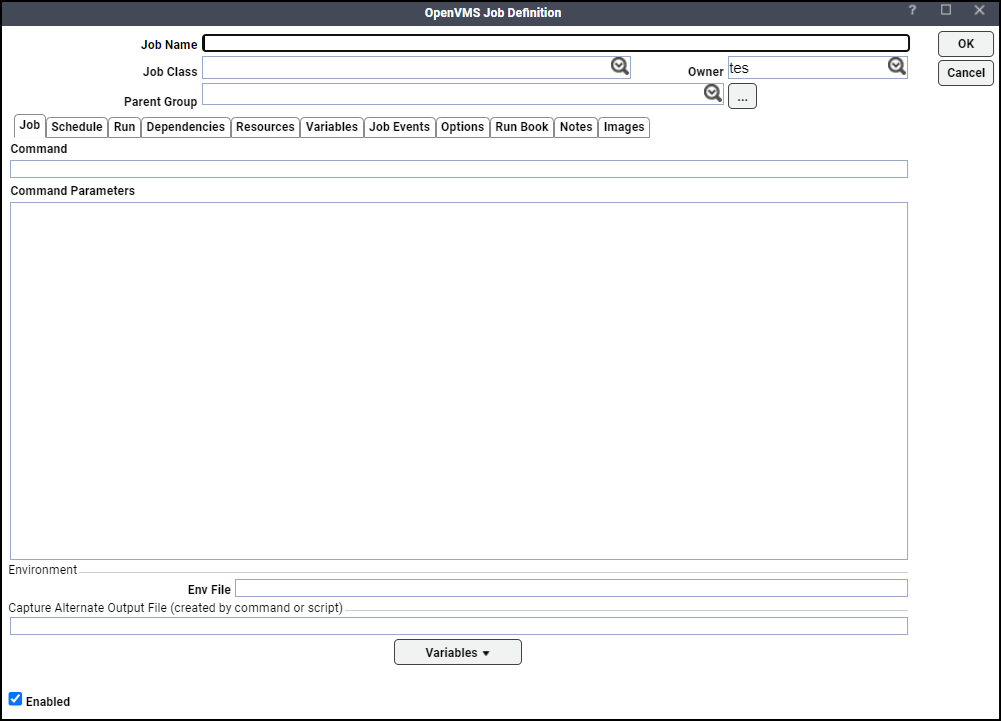
Refer to the explanation of options for the Command job provided in the next section for information about the options on the Job tab. The options are the same for both types of OVMS jobs.
Defining a Console Command Job
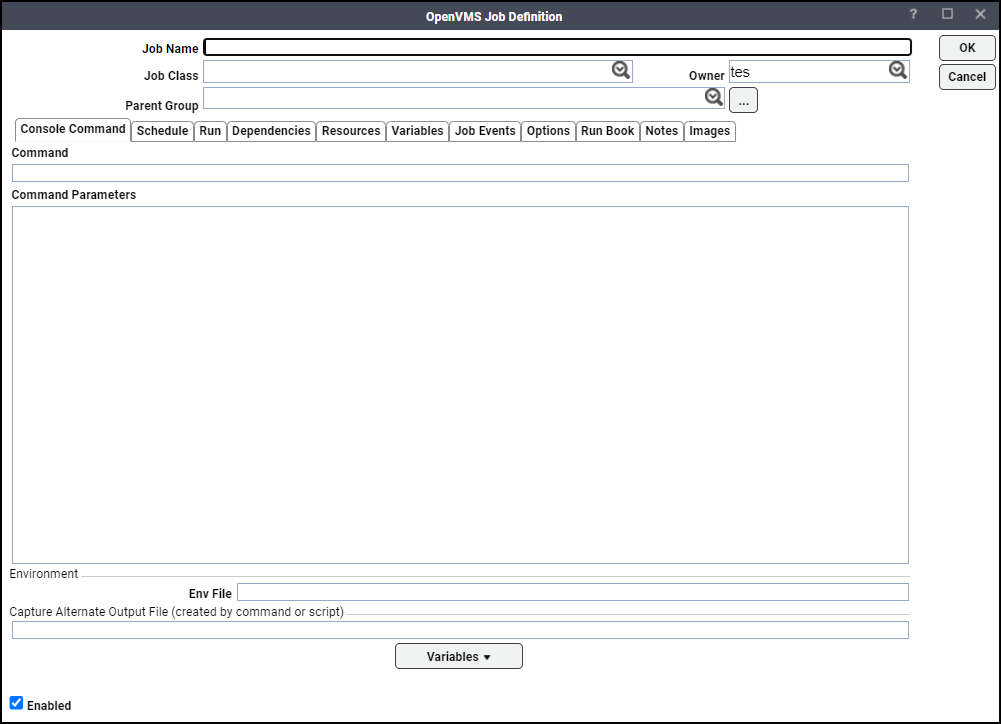
To run a command in OVMS, define a command type of job. Choose Add Job > OVMS Job > Command from the context menu of the Jobs pane to display an OVMS Job Definition dialog with a Console Command tab.
The Console Command tab looks very much like the Program tab of a job definition.
-
Command – The absolute path and filename of the command, script, batch file or executable that you want the job to run, from the perspective of the agent that runs it. Be sure to specify the full path to the file you want to run when typing the filename.
To insert a variable into your path specification, click Variables and click the variable you want to use.
-
Command Parameters – Command parameters allow a single command file to be used for multiple purposes. For example, a command that processes data from a certain file could be given the file’s name as a command parameter. You can enter all your parameters on a single line.
Enterprise Scheduler wraps the text display so that it is easier to read. This text field accepts up to 1,024 characters.
This example shows how parameters are specified in OVMS and referenced in a .com file:
Example: $ @passparam.com “P1” “P2”
$ type passparam.com
$write sys$output P1
$write sys$output P2You can type in command parameters or specify job, system, public or user defined variables.
Since the variable values are determined as when the command runs, do not use job runtime variables in the command parameters. The true value for variables like Start Time and Finish Time cannot be determined until after the job completes.
-
Env File – Enter the directory path to a text file containing a list of environment variables and their values for the job. The format of the file should be specified in name=value pairs.
Example: variable1=<its value>, variable2=<its value>.
This text field is optional.
-
Capture Alternate Output File – If a file is specified here, the agent looks for the output file in the location specified and reads it as text, returning that text as the output of the job instead of gathering the job process’s standard output.
A job process’s “standard output” is the text that would be returned to the screen if you were to run the process manually via a command line interface. However, some applications do not return any “standard output,” resulting in a blank Output tab in the Job Detail dialog if run by Enterprise Scheduler.
Example: If your job produces a small report in plain text format, you can specify the pathname of the file here. Refer to the Load URL feature on the Runbook or Notes tab for details on presenting a non‐text file for viewing via Enterprise Scheduler. If this text field is not used, Enterprise Scheduler provides the default standard output file produced by the process launched on the agent.
-
Variables – This button displays a context menu of variables categorized according to job, system, public or specific to a remote master that can be used with the command. There may be several remote masters with their own variables.
Defining Exit Codes
The only other differences between defining a regular Enterprise Scheduler job and an OVMS job occurs on the Run tab of the Job Definition dialog.
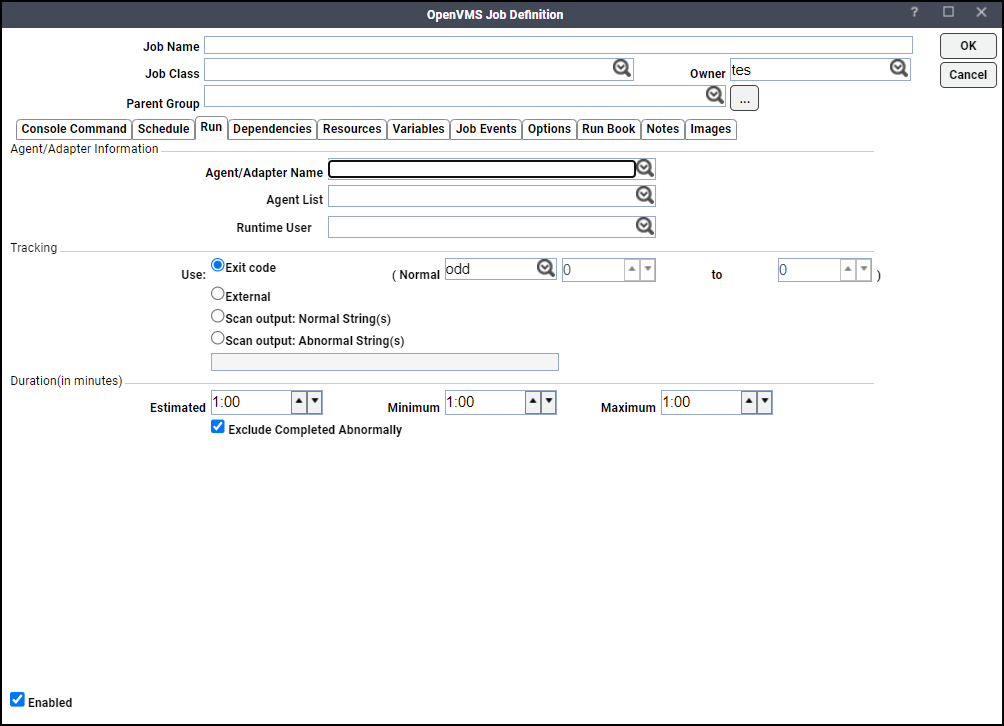
As with any other job when defining an OVMS job, specify where the job will run – either on an OVMS agent from the Agent Name field or an OVMS agent list from the Agent List. Once an OVMS agent is selected, new options become available in the Exit Codes list of the Tracking section. These options are only available with OVMS jobs. Two additional values, odd and even, can be used to determine that the OVMS job completed normally if its exit code value is either an odd or even integer.